What’s new in 002
Release Notes
Recent improvements for the people running sessions, supporting their clubs and getting out on court.
· iPhone and Android apps and recent website improvements
For Duty Managers
Find the right session control faster
Related actions stay together
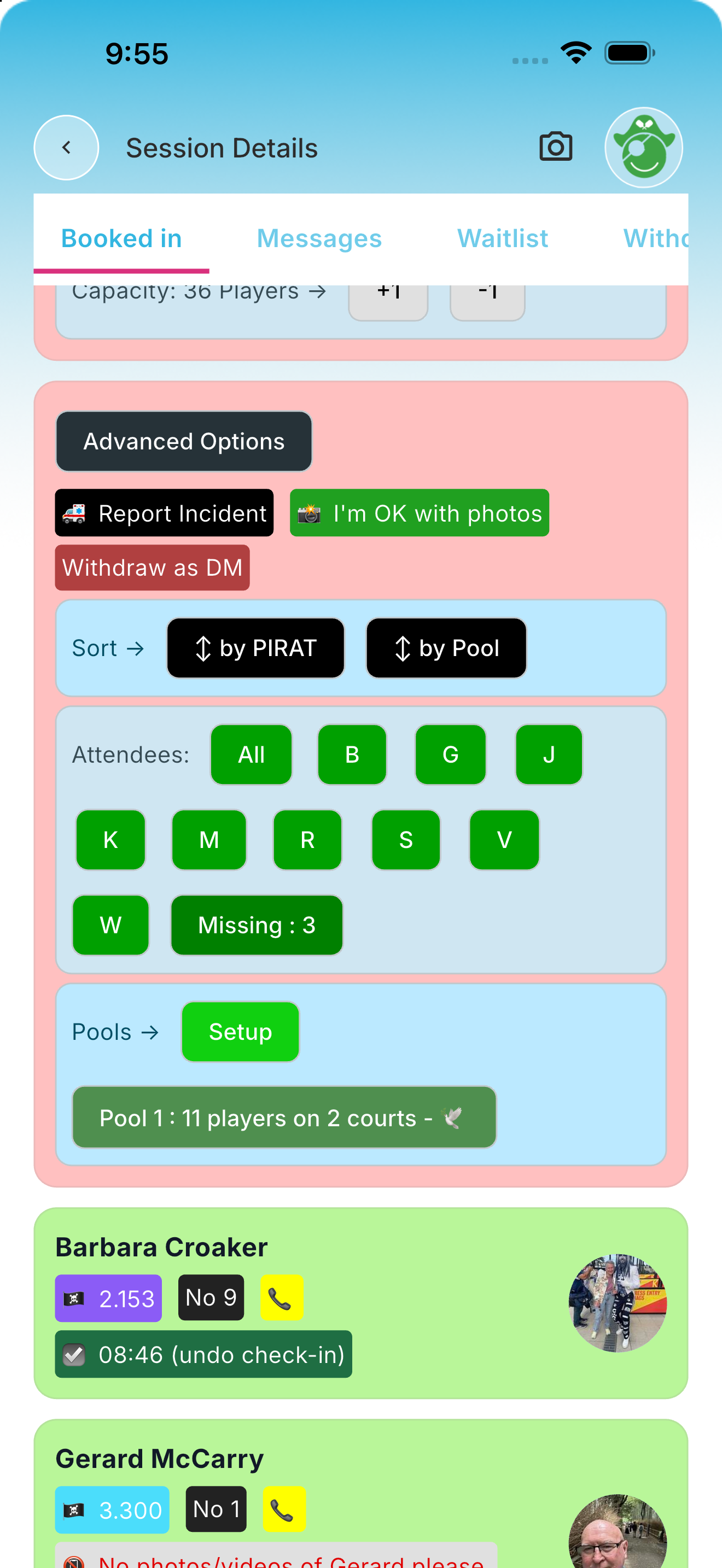
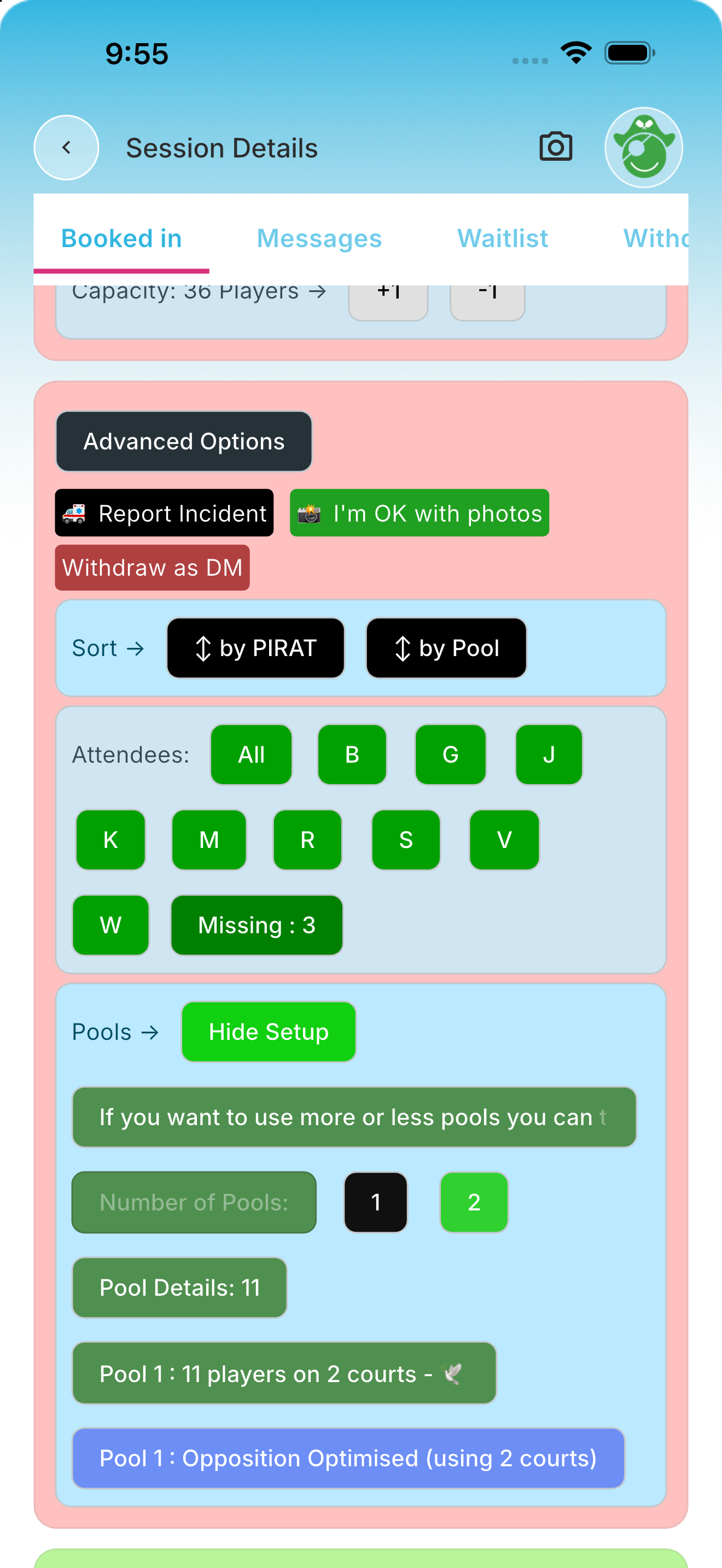
The updated app groups actions that belong together into one labelled box. Look for these boxes in Pools, sorting, court numbers, capacity, attendee filters and arrival choices when they are available. Each button still performs its own action.
Pools and setup in one place
The Pools group brings the Setup button and pool summaries together. Expand Setup to see the configuration choices available for your session, including pool scoring and scheduler controls. Choices depend on the session format and whether play has started.
Advanced Options has its own screen
Open Advanced Options from the session to find less frequent management tasks without filling the check-in area with extra controls. You’ll see the actions your role and the session allow.
Stay connected
New Duty Managers and Coaches community channels
Dedicated Duty Managers and Coaches channels bring people in those roles together in the 002 Community, with corresponding channels available within clubs.
Channel membership follows your assigned club role automatically. If a channel is missing, check that your club has assigned the relevant role and enabled the channel.
Share practical tips, ask questions and coordinate with other Duty Managers or Coaches.
For players and session organisers
Session photos, captions and galleries
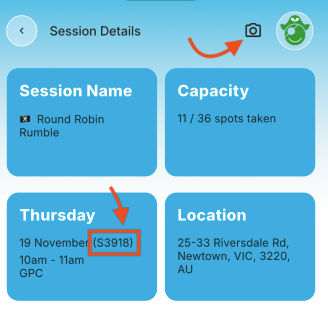
Where session photos are enabled, use the camera button at the top right of Session Details to add a photo, then browse the session gallery. The annotated screenshot below points out the camera button. Photos support captions, and permitted users can edit captions and manage photos from past sessions too.
Photo availability depends on the club and session settings, your access and the upload rules. Keep players’ photo preferences in mind before taking or sharing pictures.
Shared links open in the app
Share a direct link to a session or discussion:
This can be useful if you want to promote a session or direct attention to a conversation - you will need the sessions unique ID to use those links, which you can find in 002 as per the screenshot shown below.
https://002.net.au/play/<session_id>opens the session details.https://002.net.au/talk/<conversation_id>opens a conversation.https://002.net.au/session_talk/<session_id>opens the Messages tab on that session’s details screen.
Duty Managers assigned to a session, session administrators and higher roles can find the Session ID after the date on the Session Details screen. In the example below, 19 November (S3918) means the Session ID is 3918. Use the number without the S in shared links, for example https://002.net.au/play/3918.
Signed-in smartphone users who have used the app within the past four weeks will then have 002 automatically open on the Smartphone when they click on the link.
If you’re reading this on your smartphone with 002 installed, click here to see session sharing in action. Tapping the link should take you straight to session 3918 if you have the latest version of the 002 app.
Get the latest 002 app
Keep your app updated for the latest session controls and improvements.
Get the app